
Describe your ideal customer. Get a lead list.
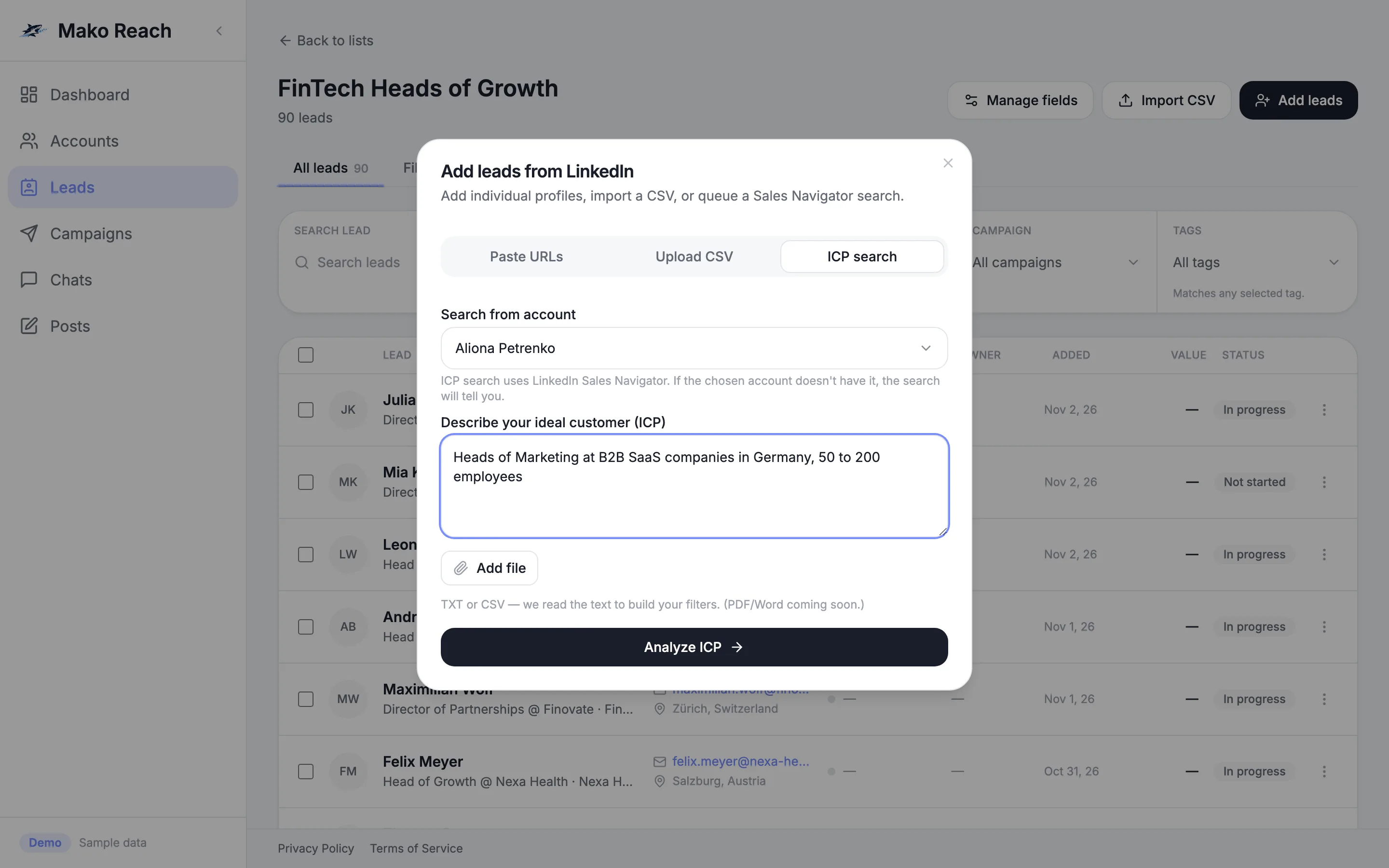
Write who you want to reach, or paste a Sales Navigator search link. Mako Reach turns it into LinkedIn filters and collects the matching leads in a list.
Building lists by hand is slow
Finding the right people on LinkedIn means setting filters, scrolling and copying profiles one by one. Lists from other tools arrive in different formats, with duplicates.
From a description to a clean list
Describe your ideal customer in plain words, or bring a list you already have. The leads land in one list with custom fields, tags and opt-out, ready for a campaign.
How it works
Describe or paste
Type your ideal customer profile or add it as a file. Or paste a Sales Navigator search link or profile URLs, or upload a CSV.
The AI maps it to filters
For an ideal customer description, the AI turns the text into LinkedIn Sales Navigator filters and may split it into several searches. You review and edit them before anything runs.
Leads are collected
Searches run in the background through one of your connected LinkedIn accounts, and the matching leads are added to your list.
Clean up and use
Duplicates inside an imported file are dropped. Add custom fields and tags, mark opt-outs, then attach the list to a campaign.
What it does
Describe your ideal customer
Write it in plain words or add a file. The AI proposes filters you can edit, and can break a broad audience into separate searches.
Paste a Sales Navigator search
Paste the link of a Sales Navigator people search and it is queued as a search on the account you choose.
CSV import and profile URLs
Upload a CSV or paste LinkedIn profile URLs. Repeated rows in the same file are removed, and you confirm that you have a lawful basis to contact the people.
Custom fields
Add your own fields to a list and use them as variables in your messages.
Tags and opt-out
Shared contact tags filter leads here and in Chats. Leads marked as opted out, and people on your suppression list, are never contacted.
Saved background searches
Searches run in the background and are saved, so you can come back to them and resume.
Find leads from an ICP description
- Open a lead list and click Add leads, then the ICP search tab.
- Describe who you want to reach and click Analyze ICP to see the LinkedIn filters.
- Tick the lawful-basis box and start the background searches.
Sample data, nothing is sent, no sign-up. The demo screens are in English.
Questions
What do I need for the AI search?
Your own LinkedIn Sales Navigator subscription on the account that runs the search, and your own AI key (OpenAI or Anthropic) that a workspace admin adds in the settings.
Can I import leads without Sales Navigator?
Yes. You can paste LinkedIn profile URLs or upload a CSV. Only the search features need Sales Navigator.
What happens to duplicates?
Repeated rows inside the same imported file are removed, and the import tells you how many were dropped.
Can I keep my own data on each lead?
Yes. Add custom fields to a list and use them as variables in your messages.